How we compared these tools
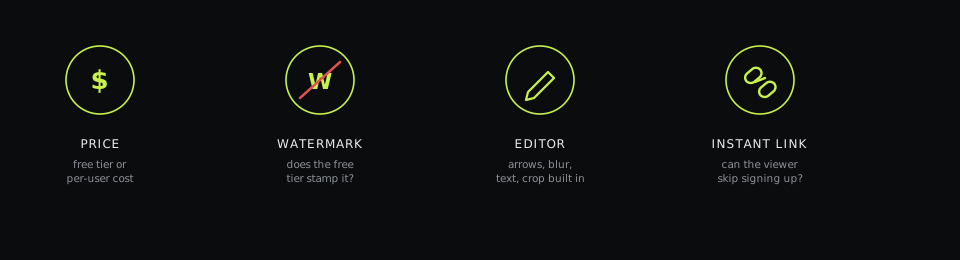
Every tool below was installed and tested on its actual free tier — not a trial of the paid plan re-labeled as "free." For each one we checked four things: which platforms it actually runs on natively rather than through an unofficial port, what's actually inside the built-in editor (arrows and text are table stakes; blur, pixelation, and step numbering separate the basic tools from the serious ones), whether a shareable link is generated automatically or you're attaching a file by hand, and what it costs on the individual tier. None of the actively maintained tools below watermark a free screenshot, so that wasn't worth a dedicated column — it's noted inline where it matters. Pricing reflects the individual/personal tier as of this writing — team and enterprise pricing usually runs higher and is worth checking directly if you're buying for more than one seat.
Quick comparison
Eight tools, judged on what actually changes your day-to-day: which platforms it runs on, whether an editor is built in or you're exporting to a separate app, and whether the person you send a screenshot to can open it without signing up for anything.
| Tool | Platforms | Price | Built-in editor | Instant link |
|---|---|---|---|---|
| DashShot | Web, macOS, Windows, Chrome | Free · Pro $6/user/mo | Yes | Yes, no sign-up to view |
| ShareX | Windows only | Free, open-source | Yes, advanced | Via third-party uploader |
| Lightshot | Windows, macOS, browser ext. | Free | Basic | Yes |
| Greenshot | Windows only | Free, open-source | Yes | No, local file by default |
| Snagit | Windows, macOS | $39/user/yr | Yes, advanced + OCR | Via paid TechSmith cloud |
| CleanShot X | macOS only | $29 one-time or $8/mo | Yes | Yes, on paid Cloud plan |
| Monosnap | Windows, macOS | Free · paid teams | Basic | Yes |
| Flameshot | Linux, unofficial Win/Mac | Free, open-source | Yes, basic annotations | No native (Imgur upload) |
A few patterns jump out before you even open any of these apps. None of the actively maintained ones watermark a free screenshot anymore — that's mostly a mobile-app problem now. The split that matters is between tools built around a local file (Greenshot, ShareX by default, Flameshot) and tools built around a shareable link (DashShot, Lightshot, Monosnap, and the paid cloud tiers of Snagit and CleanShot X). If you mostly keep screenshots for yourself, a local-file tool is simpler — one less thing configured, one less account. If you send screenshots to other people — clients, teammates, a bug tracker — a link-first tool saves you the extra step of attaching a file and asking "can you see it?" on every single screenshot, which adds up fast once you're doing it ten times a day.
1. DashShot — best free editor and the fastest link to share
DashShot captures the full screen, a single window, or a hand-picked region, and the result opens straight into an editor with arrows, freehand drawing, text labels with a background so they read on any image, pixelation for blurring sensitive data, and cropping with draggable handles. There's no watermark and no cap on how many screenshots you take on the free plan.
The part that saves the most time in practice: every screenshot gets a link the moment you're done editing, and whoever you send it to opens it in a browser — no account, no app install, no "sign up to view this image" wall. You can optionally gate a link behind an email if you want to know who opened it, which matters if you're sending proposals or reports rather than a quick internal note. A single hotkey also copies the finished PNG straight to your clipboard, so you can paste it directly into Slack, an email, or a ticket without saving a file first.
Screenshots and the editor are entirely free, with no limits — that's the whole free plan, not a trial. Screen recording, GIF export, and a voice-to-task feature that turns a spoken note into a structured task with a deadline and owner sit on the Pro plan, from $6 per user per month. If you only need screenshots, you never have to pay, and if a teammate later needs recording too, it's an upgrade rather than a switch to a different app.
Strong: free editor with no watermark or cap, and links that open instantly for the recipient.
Watch for: the desktop app is newer than some of the tools on this list, so its library of third-party integrations is smaller.
Best for: anyone who shares screenshots with other people regularly — agencies, support teams, freelancers with clients — and doesn't want the recipient to hit friction opening a link.
2. ShareX — best free tool if you're on Windows and want every setting exposed
ShareX is free, open-source, and arguably the most feature-dense screenshot tool that exists for Windows. Beyond captures, it handles screen recording, GIF creation, OCR, and can upload to dozens of destinations you configure yourself — Imgur, your own FTP, S3, and more. Its region-capture tool alone has more modes (window, monitor, freehand, scrolling capture with a browser extension) than most paid apps ship.
The tradeoff is the same thing that makes it powerful: the settings surface is large, and getting a shareable link working means picking and configuring an uploader yourself first. It's not a five-minute setup for someone who just wants to screenshot and send — the first hour with ShareX is spent in menus, not taking screenshots.
Strong: free, endlessly configurable, more capture modes than anything else here.
Watch for: Windows only, and link-sharing isn't ready out of the box.
Best for: Windows power users and IT teams who want to configure exactly where captures go and don't mind spending twenty minutes in the settings once.
3. Lightshot — best for a screenshot in two clicks, nothing else
Lightshot does one thing: press the hotkey, drag a region, and you get a small toolbar with arrows, text, and a line tool. Hit upload and you have a link on your clipboard in under two seconds. There's no library, no folders, no dashboard — which is either exactly what you want or a real limitation, depending on how many screenshots you take per day and whether you ever need to find an old one again.
Strong: genuinely the fastest capture-to-link flow of any tool here.
Watch for: nothing is saved anywhere searchable — lose the link, and the screenshot is effectively gone.
Best for: occasional screenshots where speed matters more than organization — a quick "look at this" sent in chat.
4. Greenshot — best free, local-file tool for Windows
Greenshot captures on a hotkey and drops you straight into a lightweight editor — arrows, highlights, text, blur for sensitive info — then saves to a file, clipboard, printer, or a small list of destinations you configure. It's open-source, free, and has stayed reliable for years without much fuss or feature bloat.
It doesn't generate a shareable link by default the way DashShot or Lightshot do; you're saving a file and sending it yourself through email or chat, which is fine if you mostly keep screenshots for your own documentation rather than sending them outward constantly.
Strong: lightweight, reliable, a real editor for free.
Watch for: no built-in link sharing, Windows only.
Best for: Windows users who want a free, no-nonsense editor and don't need instant links.
5. Snagit — best if you need OCR and long-form tutorial screenshots
Snagit's editor goes deeper than most: step numbering that auto-increments across a sequence of screenshots, OCR that turns a screenshot of text into copyable text, and templates built for how-to documentation. TechSmith moved Snagit to a subscription in 2025 — new licenses are $39 per user per year, with team pricing around $48 per user per year, replacing the old one-time purchase.
That price makes sense if you're producing documentation or training material regularly — the step-numbering feature alone can save real time across a 20-step tutorial. For an occasional screenshot to send a colleague, it's a lot of tool and a lot of subscription for something a free option handles just as well.
Strong: the deepest editor here, built specifically for documentation work.
Watch for: subscription-only now, and instant links need the paid cloud add-on.
Best for: technical writers and support teams building step-by-step documentation at volume.
6. CleanShot X — best editor if you're Mac-only
CleanShot X is built specifically for macOS and it shows — the capture UI, the annotation tools, and the scrolling-capture mode all feel native rather than ported from somewhere else. A $29 one-time license gets you the app with a year of updates (optional $19/year after that); the $8/month Cloud Pro tier adds instant links and more storage, closer to how DashShot's link-sharing works out of the box on the free plan.
The catch is simply that it's Mac-only — no Windows version, so it's off the table the moment your team isn't 100% Apple, even if half your colleagues are on Mac and half on Windows.
Strong: the most polished, native-feeling capture experience on this list.
Watch for: Mac-only, and the one-time license doesn't include cloud links.
Best for: Mac-only individuals or small teams who want the most polished native screenshot experience and don't mind paying for it.
7. Monosnap — best freemium option with cloud links out of the box
Monosnap pairs a basic annotation editor with cloud upload baked into the free tier, so you get a link without configuring an uploader the way ShareX requires. The editor itself is lighter than DashShot's or Snagit's — enough for an arrow and a note, not much beyond that — and the paid tier adds team features and more storage for people who outgrow the free allowance.
Strong: link-sharing works the moment you install it, no setup.
Watch for: the editor is thin — no pixelation or advanced crop tools.
Best for: people who want link-sharing without any setup and don't need a full annotation toolkit.
8. Flameshot — best free tool for Linux
Flameshot is the closest thing Linux has to Greenshot: a hotkey capture with a built-in editor for arrows, boxes, blur, and text, released as open source and maintained actively by its community. Windows and macOS ports exist but are community-maintained side projects and noticeably less polished than the Linux version they're ported from.
There's no native link-sharing — screenshots go to a file, clipboard, or an Imgur upload if you enable it in settings, which is a manual step rather than the default behavior.
Strong: the standard free annotation tool for Linux desktops.
Watch for: no native link sharing, and the Windows/Mac ports lag behind.
Best for: Linux users who want a proper annotation editor without installing something heavier like ShareX under Wine.
What about the Snipping Tool and macOS's built-in shortcuts?
Windows' Snipping Tool and macOS's Cmd+Shift+4 both got real annotation features in recent years — arrows, text, a Markup toolbar on Mac, and Windows added a delayed-capture timer. For a single, one-off screenshot, they're genuinely fine and require installing nothing.
Where they fall short is everything downstream of the capture: no link generation, no library of past screenshots to search through later, and on Windows specifically, no pixelation tool for blurring sensitive data before you send something out. The moment you're sharing screenshots with someone else more than occasionally, a dedicated tool starts paying for itself in the clicks it saves — instead of screenshot → save → find the file → attach it → send, it's screenshot → link → paste.
When a screenshot isn't enough
Every tool on this list is built for a still image, but not every explanation fits in one frame. If what you're showing involves a sequence of clicks, an animation, or "watch what happens when I do this," a screenshot forces the viewer to imagine the missing steps. That's the point where a screen recording — ideally one with a webcam bubble so the viewer can see you gesture at the right spot — replaces five screenshots and a paragraph of numbered instructions with thirty seconds of video.
This is the one place DashShot and Snagit diverge from the rest of this list: both bundle screen recording into the same app as the screenshot editor, so you're not switching tools mid-explanation. ShareX also records, though again without the link-sharing built in. Most of the others — Lightshot, Greenshot, CleanShot X's base tier, Monosnap, Flameshot — are screenshot-only, and you'd need a separate app like Loom for anything that moves.
How to choose in under a minute
Work through these in order and stop at the first one that fits:
- Not sure yet, or just want one tool that covers most cases → start with DashShot: a free editor with blur, crop, and annotations, no watermark, and links that open with zero friction for whoever you send them to.
- You send screenshots to other people regularly → pick a link-first tool: DashShot, Lightshot, Monosnap, or a paid cloud tier. Anything that saves to a local file by default will cost you extra steps every single time you share one.
- You're documenting a product or writing tutorials at volume → Snagit's step numbering and OCR are worth the subscription.
- You're Mac-only and want the most native feel → CleanShot X.
- You're on Windows and want every setting exposed, for free → ShareX.
- You're on Linux → Flameshot.
- You occasionally need a screen recording too, not just a still image → DashShot or Snagit, so it's the same app instead of a second subscription.