The short version
| Tool | Platforms | Price | Screen recording | Share link | Best at |
|---|---|---|---|---|---|
| Snagit | Windows, macOS | $39/yr individual | Yes | Via TechSmith cloud | Polished documentation |
| Lightshot | Windows, macOS, browser | Free | No | Yes (public prnt.sc) | Speed, simplicity |
| ShareX | Windows | Free, open-source | Yes, incl. GIF | Via 80+ uploaders | Power users, automation |
| Greenshot | Windows (old Mac app) | Free, open-source | No | Via plugins | Lightweight local capture |
| Bandicam | Windows | Free with watermark · ~$40 one-time | Yes (main focus) | No | Game and long recordings |
| DashShot | macOS, Windows, Chrome, web | Screenshots free · Pro $6/user/mo | Yes, Pro | Yes, instant, no sign-up to view | Screenshots + video + tasks for teams |
Prices are list prices at the time of writing (October 2026). The rest of this article goes tool by tool — what it is, who it's for, and the moment people usually start looking for something else.
What is Snagit?
Snagit is TechSmith's screenshot and screen recording app for Windows and Mac, and the most complete commercial tool in this category. It captures regions, windows, scrolling pages and menus; extracts text from images (OCR); has a deep editor with callouts, step numbers, blur, stamps and templates; and records short videos of your screen and webcam. TechSmith moved Snagit to a subscription in 2025 — currently $39 a year for individuals and $48 for business seats.
Snagit is at its best for people who produce documentation: technical writers, trainers, support teams building help-center articles. Templates that turn a series of screenshots into a step-by-step guide are genuinely time-saving.
Why people look for a Snagit alternative: the subscription feels steep for someone who mainly takes screenshots and sends them to a colleague; it's a heavy install for quick captures; and sharing a link to a capture goes through TechSmith's own cloud rather than being instant by default.
Free alternatives to Snagit: ShareX covers most of Snagit's capture features on Windows for free, including scrolling capture and OCR. DashShot covers the annotate-and-share workflow on both Windows and Mac, free for screenshots, with screen recording on its Pro plan. For heavy documentation work, though, Snagit's templates are still hard to replace.
What is Lightshot?
Lightshot is the tiny free screenshot tool that replaced the Print Screen key on millions of Windows PCs. Press PrtSc, drag a rectangle, add an arrow or a box, and either save the file or upload it to get a prnt.sc link. It also runs on macOS and as a browser extension. There's no account and no setup.
That simplicity is the whole appeal — and it's also where it stops. The editor has a handful of tools and no proper blur or pixelation. There's no screen recording. And the upload links have a well-known problem: they're short, sequential-looking IDs, and people have scraped prnt.sc for years by simply trying random addresses. Anything sensitive you've uploaded with Lightshot should be treated as public.
How DashShot differs from Lightshot: the same "hotkey, select, annotate, link" flow, but with pixelation to hide sensitive data before sharing, a full editor (arrows, rectangles, freehand, numbered callouts, text with background, crop), a searchable history of your captures, screen and GIF recording on Pro, and links that aren't sequential. If Lightshot's speed is what you love, you won't lose it.
What is ShareX?
ShareX is a free, open-source capture tool for Windows, and by feature count it beats every paid product on this list. Region, window and scrolling capture; screen recording to MP4 or GIF; OCR; a color picker, ruler and screen magnifier; automatic watermarking; and "after capture" workflows that can upload to more than 80 destinations — Imgur, Google Drive, Dropbox, your own FTP or S3 bucket — and copy the link, all from a single hotkey.
The trade-off is complexity. ShareX's settings window has settings for its settings, and getting a clean "screenshot → link" workflow means configuring an uploader and picking where the files live. It's also Windows-only, so it doesn't work for mixed Mac and Windows teams.
Who it's for: developers and power users on Windows who enjoy tuning their tools. When to look elsewhere: when you need the same tool on a Mac, when non-technical teammates need to use it without a setup guide, or when you want a shared history of captures across a team.
What is Greenshot?
Greenshot is another free, open-source Windows screenshot tool — lighter than ShareX and more capable than Lightshot. It captures regions, windows and full screens, opens them in a clean editor with highlights, obfuscation, arrows and text, and exports to a file, the clipboard, a printer, email or Office apps. After a quiet few years the Windows version is under active development again, with new 1.3 releases in 2025–2026. The Mac version is a separate, older paid app on the App Store.
Who it's for: people on Windows who want a no-nonsense local screenshot tool and don't need links or video. When to look elsewhere: you need recordings, instant share links, or the same tool on a Mac.
What is Bandicam?
Bandicam is a Windows screen recorder rather than a screenshot tool — known mostly for game recording, long webinar captures and recording from webcams or HDMI devices. The free version stamps a "www.BANDICAM.com" watermark on every video and caps each recording at 10 minutes. A personal license costs around $40 one-time and removes both limits.
When to look elsewhere: if you mostly record short explanations for colleagues or clients, Bandicam is more than you need and the result is a file you still have to upload somewhere. A recorder that gives you a link straight away saves that step.
Other names you'll see: Camtasia, CleanShot X, Screencastify, Screen Studio, Droplr
Camtasia is TechSmith's full video editor — the step up from Snagit when recordings need real editing for courses or YouTube. Powerful, and priced like a professional tool (around $180 a year).
CleanShot X is the Mac favorite: beautiful captures, scrolling screenshots, screen recording with a webcam, and an optional cloud for links. Mac-only, so it doesn't help Windows teammates.
Screencastify is a Chrome screen recorder that's especially popular in schools; recordings go to Google Drive and the free plan has limits on what you can do with them.
Screen Studio is a Mac app for polished product videos with automatic zoom and smooth cursor movement — excellent for marketing demos, overkill for a quick bug report.
Droplr is a paid team tool for screenshots, recordings and file sharing with links, aimed at sales and support teams.
Head to head: the four things that actually differ
Feature lists make these tools look more alike than they are. In day-to-day use, four things decide whether a screenshot tool fits or gets in the way.
Capture modes
Every tool here does region, window and full-screen capture. The differences start with the harder cases. Scrolling capture — a whole long web page or document in one image — is built into Snagit, ShareX and CleanShot X, and into DashShot's Chrome extension for web pages. Lightshot and Greenshot don't do it. Multi-monitor setups work everywhere, but it's worth testing how each tool handles monitors with different scaling, which is where cheaper tools produce blurry captures. Delayed capture — needed for screenshots of open menus and tooltips — is in Snagit, ShareX and Greenshot, and in the Windows Snipping Tool.
The editor
Arrows, boxes and text are universal. The tool that most people actually miss is proper pixelation for hiding emails, account numbers and customer names before a screenshot leaves the machine. Snagit, ShareX, Greenshot and DashShot have it; Lightshot doesn't, which is why so many Lightshot screenshots end up with a hastily drawn black rectangle that hides less than people think. Numbered callouts — the "1, 2, 3" bubbles for step-by-step instructions — are in Snagit and DashShot and save a lot of explaining in bug reports and how-to messages.
Sharing and privacy
This is where the tools diverge most. Greenshot and Bandicam give you a file. ShareX gives you whatever destination you configure. Lightshot gives you a fast public link that is easy to guess. Snagit shares through TechSmith's cloud. DashShot copies a short link the moment you finish editing and opens in any browser without an account — with an option to require an email before viewing when the screenshot goes to someone outside the team. Before choosing, ask a simple question: if a client or a stranger got hold of one of these links, what would they see?
Recording
Lightshot and Greenshot don't record at all. ShareX records to MP4 and GIF but leaves the upload to you. Snagit records short videos with a webcam and has basic trimming. Bandicam records long, high-quality video but watermarks the free version. DashShot records screen, window or region with a camera bubble, lets you cut parts out after recording and returns a link — on the Pro plan. If your team switches between "screenshot" and "short video" many times a day, having both in the same app matters more than any single feature.
If you're on a Mac
Most of the classic Windows tools — ShareX, Greenshot, Bandicam — either don't exist on macOS or exist as old ports. The Mac short list is different: the built-in Cmd+Shift+4 and Cmd+Shift+5 for quick captures and recordings; CleanShot X for the most polished Mac-only experience; Snagit if your company already licenses it; and DashShot if you need the same tool and the same links as Windows colleagues. Lightshot does run on a Mac, but with the same limits as on Windows.
Where DashShot fits
Full disclosure: DashShot is our product. It belongs in this comparison because it covers the gap most of these tools leave — the same screenshot tool on Mac, Windows and in Chrome, with a link you can paste immediately, and screen recording in the same app.
- Screenshots: a hotkey, a region (or a window, or the full screen on any monitor), and an editor with arrows, rectangles, freehand pen, numbered callouts, text with a background, pixelation and crop. A short link is copied to your clipboard as soon as you're done. Free and unlimited, no watermark.
- Full-page capture: the Chrome extension scrolls a long page and stitches it into one image — useful for landing page reviews and competitor research.
- Recording (Pro): full screen, a window or a region; a camera bubble with live preview; pause and resume; cut any part of the video afterwards; export as video or a GIF up to 12 seconds.
- Tasks (Pro): record a voice or video note and DashShot turns it into a structured task with a link the recipient can update — useful when your screenshots are mostly requests for someone else to change something.
What it doesn't do: OCR, Snagit-style documentation templates, or ShareX's custom upload destinations. If those are central to your work, stick with the tool that has them.
How to choose
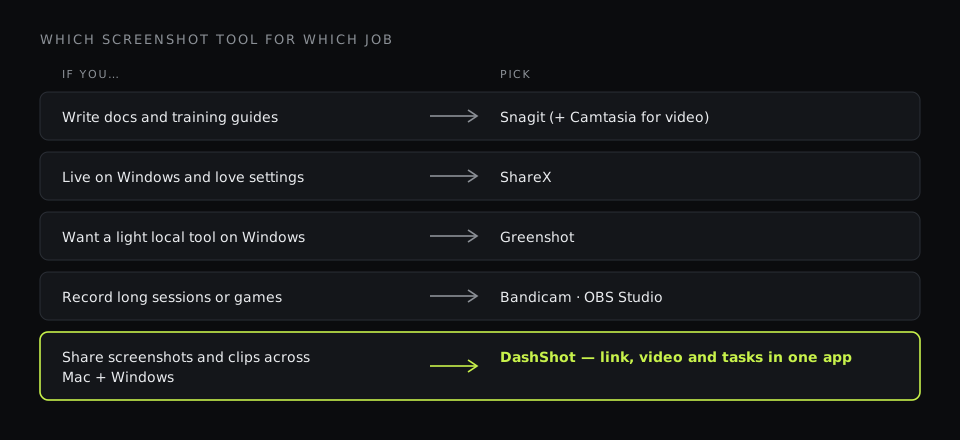
- You write documentation and training material: Snagit, and Camtasia if the videos need editing.
- You're on Windows and love configuring tools: ShareX.
- You want a light local screenshot tool on Windows: Greenshot.
- You record long sessions or games on Windows: Bandicam (paid) or OBS Studio (free).
- Your team is mixed Mac and Windows and shares screenshots and short videos all day: DashShot.
- You only ever take a quick screenshot for yourself: the built-in tools — Snipping Tool on Windows (Win+Shift+S) or Cmd+Shift+4 on a Mac — are honestly enough.
Whatever you pick, check two things before rolling it out to a team: where the links point and who can open them, and whether there's a way to blur sensitive data before a capture leaves your machine. Those two details cause more problems than any missing feature.