If you record calls and demos
The most requested change: computer sound. Before 1.22 DashShot recorded your microphone only, so in a recorded Zoom call you heard yourself and silence where the others spoke. Now there's a 🔊 Computer sound switch next to the microphone. Turn both on and they're mixed into one track. On Windows it works out of the box; on a Mac it needs macOS 13 Ventura or later. The Chrome extension records the sound of the shared tab, and on Windows and ChromeOS the whole computer when you share the entire screen. Details and tips against echo are on the computer audio page.
Recordings are now MP4 (H.264 video, AAC sound) instead of WebM. That sounds technical, but it means the file opens in QuickTime, on an iPhone and in PowerPoint without a converter. Old WebM videos keep playing at their links. More in screen recorder MP4.
Recording itself got smoother. There are two quality presets: Standard (1080p, 30 fps, the default) and High (your screen's original resolution, up to 4K on Mac and up to 2560 px on Windows, 60 fps). A full-screen recording without the camera is written directly, without an extra drawing step, which is where the old stutter in fast scenes came from. If your computer still can't keep up, the recording bar shows the share of dropped frames and suggests switching to Standard.
In the Chrome extension the recording controls now live in a floating panel above all windows: countdown, timer, pause and Done. We also fixed a bug from versions 1.6.1 and 1.6.2 where the Choose source and start button didn't start the recording at all. Sorry about that one.
If you take screenshots all day
Window capture. Press ⌘⇧1 or Ctrl+Shift+1, hover over a window and it lights up; click and you get only that window. Space switches between window and area. This is in the desktop app; see screenshot of one window.
Timer. 3, 5 or 10 seconds before the capture, so a dropdown or a hover tooltip can be open when the shot is taken. In the app it's in the tray menu and can have its own shortcut; in the extension it's a row of buttons in the popup. The countdown never ends up in the image. More on the screenshot timer page.
Print Screen on Windows. DashShot can take over the Print Screen key, choosing between opening the editor and an instant link. If Windows is already using the key for the Snipping Tool, DashShot tells you where to switch that off.
A copy in a folder. If you like having files as well as links, turn on Also save a copy to a folder in the app's settings. Every screenshot and recording lands there as "DashShot 2026-11-21 10.15.42".
Scrolling screenshots in the app are experimental: tick “Experimental: scrolling screenshot” in Settings, select an area and scroll it with the mouse wheel. Details on the scrolling screenshot page. In Chrome, full-page capture works as before.
If you edit screenshots
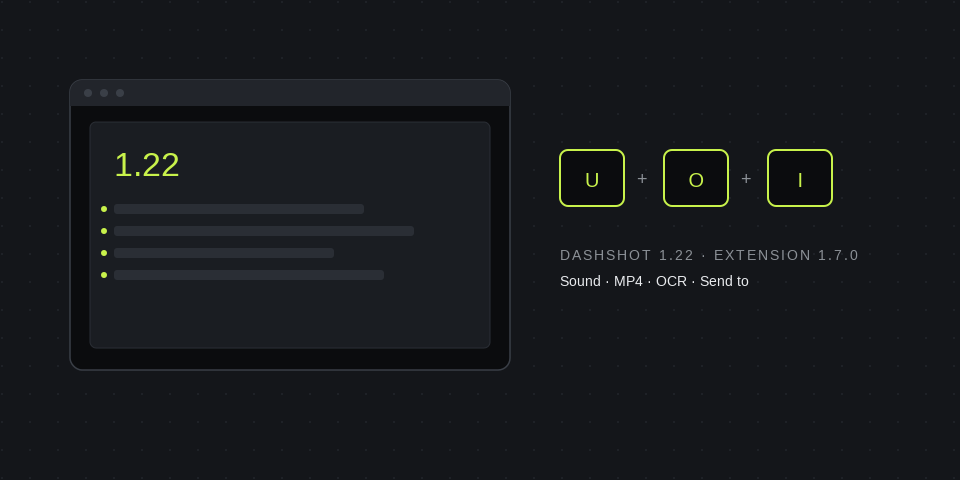
Three new keys in the editor, on Mac, Windows, in the extension and in the web editor:
- U blur with three strengths. B is still pixelate. Text under either one can't be read back.
- O copy text. Draw a box, the text is on your clipboard. English, Ukrainian and Russian, offline; in Cyrillic text it sometimes gets a single word wrong, so read it over. See copy text from a screenshot.
- I color picker. The HEX under the cursor, copied with a click. See color picker from screen.
The color picker only makes sense if colors are right, and they weren't always. Designers told us HEX codes from DashShot screenshots didn't match the original. The cause: on Macs with a Display P3 screen, captures were saved without a color profile. Now screenshots are converted to sRGB properly and the profile is embedded, so Figma and Photoshop show the same codes. If you need the screen's own wide-gamut colors, choose As on screen (Display P3) in Settings.
Smaller things: undo and redo (Ctrl+Shift+Z, Ctrl+Y) now work with a Cyrillic keyboard layout, numbered callouts don't skip a number after an undo, and the editor window keeps one size and fits large captures in, with zoom on the mouse wheel.
If you work in a team
A Send to… button appears in the editor, after a recording and in voice tasks. Connect a destination once in your dashboard (Settings → Integrations):
- Slack: a message in a channel with the title, the link and the image.
- Jira: a new issue in your project with the link in the description.
- PlanFix: a new task, in a project if you set one.
- Webhook: JSON to any URL, for Zapier, Make, n8n or your own system.
Setup for each is on the integrations page. The list of destinations comes from our server, so new ones will show up without another app update.
Voice to task got templates: Bug report, Creative brief, Client feedback and SMART goal. Pick one before you speak and the task comes out in that structure. Auto, the old behavior, is still the default.
If you make guides and videos for others
Subtitles and chapters. Open a video in your library and click Subtitles and chapters. The speech is transcribed with timestamps, captions appear in the player, and the video is split into named chapters viewers can click. It costs one AI action per video. More on auto subtitles.
Guide export. A guide made from a video now has PDF, DOCX and Markdown buttons, and an embed code for your site or help center. See video to PDF and Word.
Auto-delete. If you don't want old captures to pile up, set your dashboard to remove screenshots and recordings after 30, 90 or 365 days. The default is never; nothing is removed unless you choose so.
How to get it
The desktop app updates itself: when 1.22 has downloaded, it installs the next time you quit DashShot, or right away from the tray menu with Restart to update. The Chrome extension updates through the Chrome Web Store. New to DashShot? Download it for Mac (Apple Silicon), Mac (Intel) or from the Microsoft Store.
The full list with every fix is in the changelog, and the new keys are on the shortcuts page.