Can you record a Google Meet call?
Meet's built-in recording has several conditions:
- A plan with recording. Google lists Business Standard and Business Plus, Enterprise editions, Essentials, Education Plus (staff), the Teaching and Learning Upgrade, Workspace Individual and Google One plans with 2 TB or more. Business Starter and Essentials Starter don't record, and Education Fundamentals and Standard users can't record the meetings they organize.
- Recording turned on by the Workspace admin.
- The right role. The host can record; so can a co-host from outside the organization, or anyone in the same organization when Host management is off. People outside the organization and people on the mobile app are notified but can't control it.
- A computer or an Android device.
Google's help page doesn't promise recording for free personal Gmail accounts, and in practice the button isn't there.
How to record a Google Meet meeting
- Join the meeting on a computer.
- At the bottom right, click Meeting tools, then Recording.
- Click Start recording, then Start in the pop-up. Everyone is notified.
- To stop, open Meeting tools → Recording → Stop recording and confirm. It also stops by itself when everyone leaves, and after 8 hours in total.
The recording shows the active speaker and anything presented. Other windows and notifications aren't saved, and pinning someone on your screen doesn't change who's in the recording. Captions can be included, and the chat is saved as a separate file in some setups.
Where do Google Meet recordings go?
To the organizer's Google Drive, in a Google Meet folder with a subfolder for each meeting. The organizer and the person who started the recording get an email with the link, and the link is added to the Calendar event. If the organizer's Drive is full, recording can fail, so it's worth checking storage before an important call.
How to record Google Meet without permission
When there's no Recording button (free Gmail, Business Starter, guest in someone else's meeting), record your screen instead. Meet runs in a browser, so you have two options in DashShot 1.22:
The Chrome extension records the Meet tab with its sound:
- Install DashShot from the Chrome Web Store and sign in.
- In the Meet tab press Ctrl+Shift+R (⌘⇧R on a Mac) or click the extension → Record video.
- Turn on the microphone and Tab or computer sound, click Choose source and start, pick the Meet tab and tick Also share tab audio in Chrome's dialog.
- Click Start recording. A floating panel with pause and Done stays above all windows, so you can switch back to Meet.
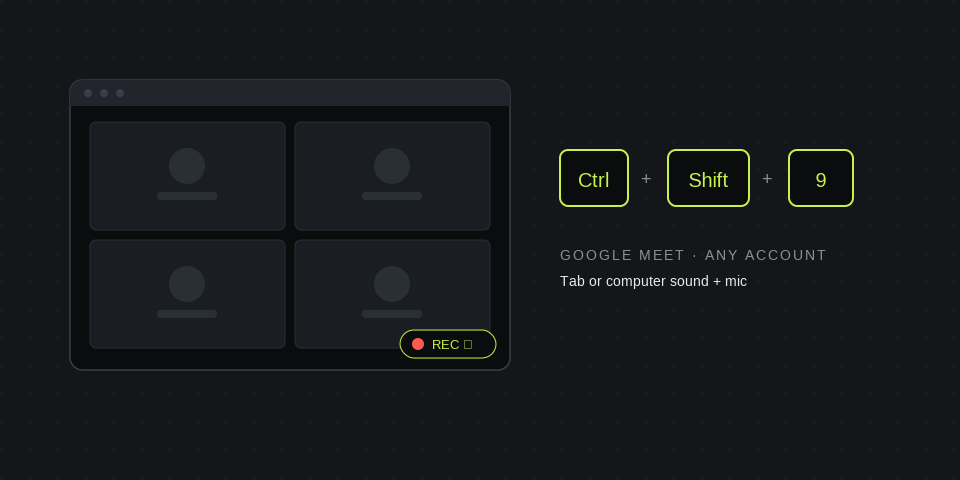
The desktop app records the whole screen with computer sound, useful when you present from another app: ⌘⇧9 or Ctrl+Shift+9, turn on the mic and 🔊 Computer sound, record. On a Mac computer sound needs macOS 13 or later.
Either way, wear headphones so the mic doesn't pick up the others twice, and tell people you're recording: unlike Meet, a screen recorder doesn't announce itself, and recording a conversation can require everyone's consent where you or they are. Free recordings run up to 5 minutes; Pro has no limit.
Meet recording or a screen recorder?
| Meet recording | DashShot | |
|---|---|---|
| Free Gmail account | No | Yes |
| Guest in another company's meeting | No | Yes |
| What's in the frame | Active speaker and presentation | Exactly what's on your screen or in the tab, plus your camera if you want |
| Where the file goes | Organizer's Drive | Your library as a link, or an MP4 on disk |
| Notification | Automatic | You tell people |
| Captions and chapters | Captions if turned on | Subtitles and chapters, 1 AI action |
After the call
Add subtitles and chapters so a teammate can find the decision without watching the whole hour, or turn a walkthrough into a PDF or Word guide. For other platforms see how to record a Zoom meeting and how to record a Teams meeting.