Can you record a Zoom meeting?
Yes, with conditions. Zoom has two kinds of recording:
- Computer (local) recording saves an MP4 on your own computer. It's available on the free Basic plan and above, in the Zoom desktop app for Windows, macOS and Linux. It doesn't work in the iPhone, iPad or Android apps.
- Cloud recording saves the meeting in your Zoom account online. It's part of paid plans and is the only Zoom recording option on mobile.
Either way, recording is controlled by the host. A participant can record with Zoom's button only after the host allows it. Everyone in the meeting sees a recording indicator and is notified when recording starts, and can choose to leave.
How to record a Zoom meeting as the host
- Start the meeting in the Zoom desktop app.
- In the toolbar at the bottom, click Record.
- If a menu appears, choose Record on this Computer (or Record to the Cloud on a paid plan).
- A recording indicator appears in the top-left corner. Use Pause or Stop in the same place when you need to.
- When the meeting ends, Zoom converts the recording. Don't shut the laptop until it finishes.
The local file is an MP4 named like video1234567890.mp4 (an audio-only M4A is saved next to it) inside the Zoom folder in your Documents. Zoom recommends keeping that folder on a local drive, not in a synced cloud, external or network folder, because conversion can fail there.
How to record a Zoom meeting as a participant
If the Record button is missing or greyed out, the host hasn't given you permission. There are three ways the host can do it, according to Zoom's help center:
- For you alone: Participants → hover over your name → More → Allow Record.
- For everyone: turn on Record to computer under the settings for all participants.
- On request: turn on Request to record to computer, so you can ask and the host approves.
Once allowed, the steps are the same as for the host: Record → Record on this Computer. If your company's Zoom account has computer recording switched off by an admin, nobody can grant it in the meeting; ask the admin, or use the method below.
How to record a Zoom meeting without permission
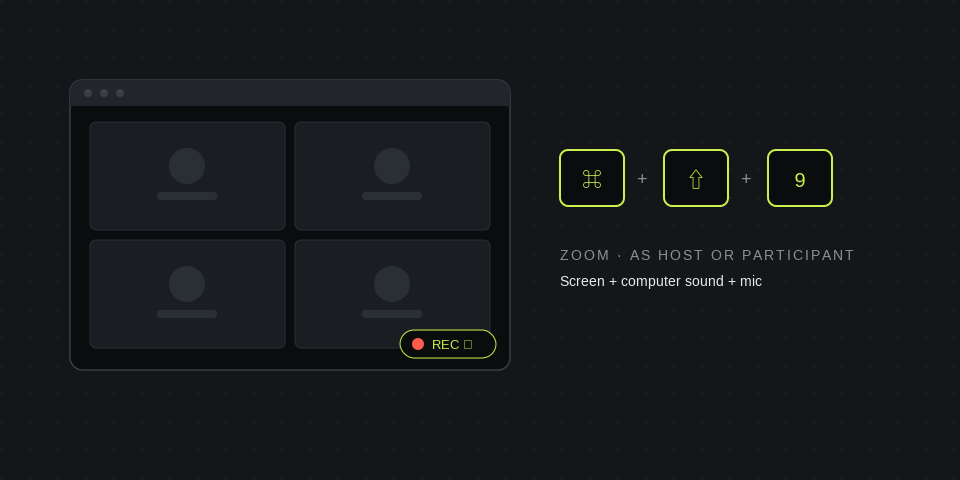
Zoom's permissions apply only to Zoom's own button. A screen recorder captures what's on your screen and what your computer plays, so it records the call regardless. The catch with most system recorders is sound: the Mac's ⌘⇧5 records only a microphone, so you get yourself and silence where the others talk.
DashShot 1.22 records computer sound together with your microphone. Here is how to record a Zoom call with it:
- Install DashShot for Mac or Windows and sign in.
- Join the Zoom meeting and put on headphones. With speakers, your microphone picks up the others a second time and the recording has an echo.
- Press ⌘⇧9 on a Mac or Ctrl+Shift+9 on Windows. Pick the Zoom window or the whole screen.
- Turn on the microphone and 🔊 Computer sound. Watch both level meters for a few seconds while someone talks.
- Choose Standard quality (1080p, 30 fps) for a long call; the file stays small. Click Record.
- Press the same shortcut to stop. Press ⌘↩ / Ctrl+Enter to upload and copy a link, or ⌘S / Ctrl+S to save the MP4.
On a Mac, computer sound needs macOS 13 Ventura or later. The Free plan records up to 5 minutes per video, which suits a short stand-up or a single question; for full meetings you need Pro. If you join Zoom in a browser tab, the DashShot Chrome extension can record that tab with its sound.
Tell people you're recording. Zoom announces its own recordings; a screen recorder doesn't. In many countries and US states recording a conversation needs the consent of everyone in it, and many companies have their own rules. A sentence at the start of the call ("I'm recording this so I can write up notes") covers it.
How to record a Zoom meeting on a phone
The Zoom mobile apps support only cloud recording, so on a free plan there's no Record button on a phone. The phone's own screen recorder (Control Center on an iPhone, Quick Settings on most Android phones) can capture the call instead; check that the meeting sound is actually in the result, because it depends on the phone and the app's settings.
Which way to choose
| Your situation | Use | What you get |
|---|---|---|
| You're the host on a free plan | Record → Record on this Computer | MP4 in Documents → Zoom after the meeting |
| You're the host on a paid plan | Record to the Cloud | Recording in your Zoom account, works on mobile too |
| You're a participant and the host agrees | Ask for Allow Record, then record locally | The same MP4 as the host |
| No permission, or recording is disabled by an admin | Screen recorder with computer sound | MP4 or a link with everyone's voices |
| You want your face and slides in one clip for someone who missed it | DashShot with the camera bubble | A link you can send right away |
After the call: make the recording useful
An hour-long video rarely gets watched. Two things help. In DashShot, Subtitles and chapters turns the speech into captions and splits the call into named chapters, so a colleague can jump to "Budget" without scrubbing. And if the call was a walkthrough, video to guide turns it into steps with screenshots that you can download as PDF or Word.
For other platforms see how to record a Teams meeting and how to record Google Meet, and for screen recording in general, how to record your screen.