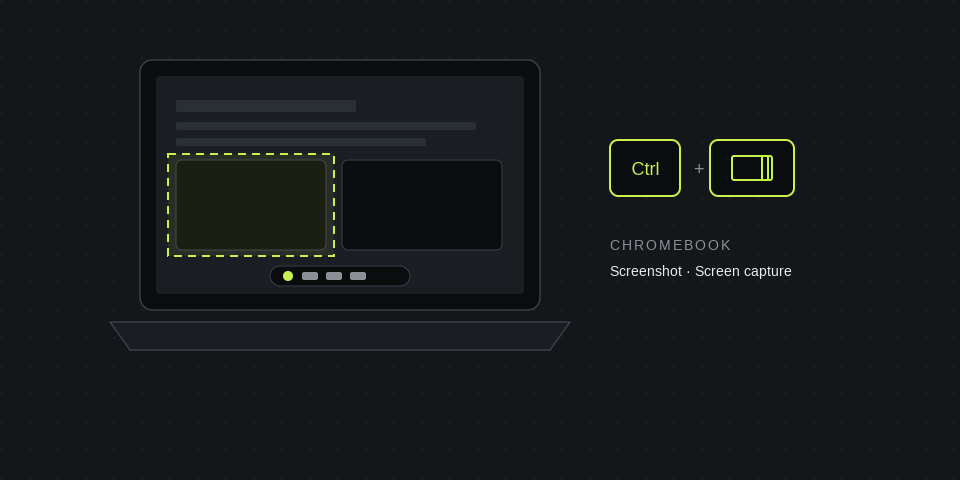
The two Chromebook screenshot shortcuts
| What you want | Press |
|---|---|
| The whole screen | Ctrl + Show windows |
| Part of the screen or one window | Ctrl + Shift + Show windows, then choose and drag |
| Any screenshot, on a Chromebook with a Screenshot key | The Screenshot key in the top row |
| A screenshot with an external keyboard | Ctrl + Shift + F5 |
| A screenshot in tablet mode | Power + Volume down |
| Stop a screen recording | Search + Shift + X |
Shortcuts are from Google's Chromebook help pages, checked in November 2026. The same keys work on every brand because they all run ChromeOS, so "how to screenshot on an HP Chromebook" and "on a Dell Chromebook" have the same answer.
Full screen: Ctrl + Show windows
Hold Ctrl and press the Show windows key. The screen flashes, a preview appears in the bottom right corner, and that's it: the image is already on the clipboard and in your Downloads folder as a PNG. Press Ctrl+V in Google Docs, Gmail or a chat to paste it.
Part of the screen: Ctrl + Shift + Show windows
This opens the Screen capture toolbar at the bottom of the screen. It has two switches: Screenshot or Screen record, and then full screen, partial or window.
- Press Ctrl+Shift+Show windows.
- Make sure Screenshot is selected (the camera icon).
- Pick Take a partial screenshot, then drag over the area. Or pick Take a window screenshot and click a window.
- Click Capture in the middle of the selection, or press Enter.
A few keys save time in the toolbar: Space switches between capture modes, Tab jumps to a corner of the selection, and the arrow keys resize it, which is handy when you need a pixel-exact crop without a mouse.
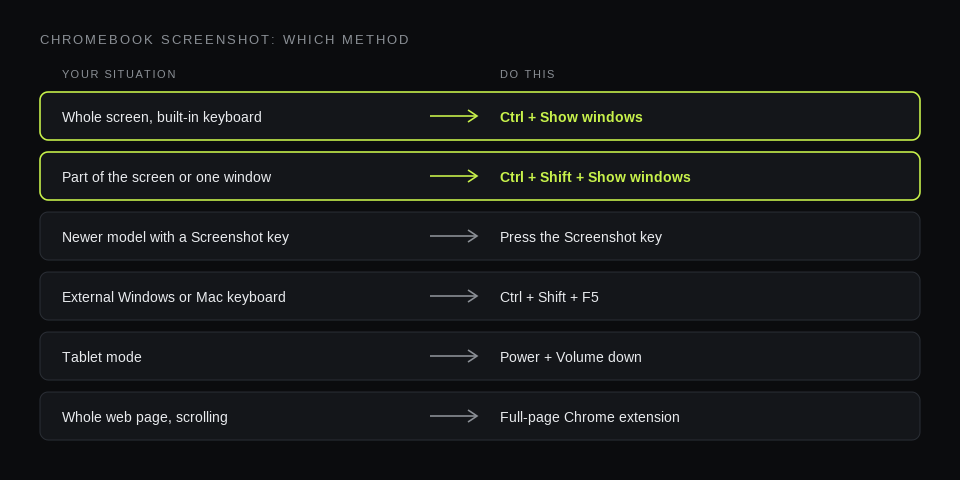
How to screenshot on a Chromebook without the Show windows key
This is one of the most searched Chromebook questions, and there are three different situations behind it.
Your Chromebook has a Screenshot key instead. Newer models have a dedicated key with a camera or a selection icon in the top row. Press it and the Screen capture toolbar opens. No combination needed.
You're using an external keyboard. A regular Windows or Mac keyboard has no Show windows key. Google's help says to press Ctrl+Shift+F5 instead, then choose full screen, partial or window in the toolbar. On those keyboards the Windows key or Command key takes the place of the Chromebook's Search key in other shortcuts.
The keyboard is folded away or you have no keyboard. Use the menu: click the clock in the bottom right corner to open Quick Settings and select Screen capture. You can do the whole thing with a touchpad, mouse or finger.
How to take a screenshot on a Chromebook tablet
In tablet mode, or on a ChromeOS tablet, press Power and Volume down at the same time. That takes a full screenshot, the same as on an Android phone.
For a partial screenshot on a tablet, press and hold the Power button and choose Screen capture from the menu, or open Quick Settings by tapping the time.
Where are screenshots saved on a Chromebook?
By default every screenshot and screen recording goes to the Downloads folder. Open the Files app and click Downloads in the left column; the newest file is at the top, named with the date and time.
Each screenshot is also copied to the clipboard automatically, so most of the time you can just paste it. Press Search+V to see the clipboard history and pick an earlier one.
To save screenshots somewhere else, open the Screen capture toolbar (Ctrl+Shift+Show windows), click the gear icon for Settings, then Select folder.
How to record the screen on a Chromebook
The same toolbar records video. Press Ctrl+Shift+Show windows, switch to Screen record, and choose full screen, partial or window. Before you start, open Settings in the toolbar to turn on:
- Microphone, Device audio or both, depending on whether you're narrating or recording a video call.
- Front camera, to add your face in a small circle.
- Show clicks and keys, useful for tutorials. Only combinations with modifier keys are displayed, so passwords you type stay private.
A partial recording can be saved as video (.webm) or as a GIF; GIFs have no sound. To stop, click the red Stop recording button in the bottom right or press Search+Shift+X. The file goes to the same Downloads folder.
Screenshots on a school or work Chromebook
If nothing happens when you press the keys on a school Chromebook, the administrator has probably turned screenshots off. ChromeOS lets schools and companies disable screen capture for managed devices, and there's no setting a student can change to get around it. Ask the school's IT team if you need it for an assignment.
If screenshots work but stop on certain pages, that's usually a page or app that blocks capture, such as some exam tools and streaming video.
Chromebook screenshot not working: quick checks
Nothing happens when you press the keys. Check that you're pressing Ctrl and not the Search or Launcher key, and that the keys aren't remapped: go to Settings › Device › Keyboard and inputs and look at how Ctrl, Search and the top-row keys are assigned. If you changed the top row to act as function keys, Show windows becomes F5, so press Ctrl+Shift+F5.
The screenshot was taken but you can't find it. Open the Screen capture toolbar, go to Settings and see which folder is selected. If someone changed it, the files are there and not in Downloads. In the Files app you can also sort Downloads by date modified.
The image is black. Protected video and some apps block capture on purpose. Pause the video or capture a different part of the screen.
Everything used to work and stopped. Restart the Chromebook and install pending updates in Settings › About ChromeOS. On a managed Chromebook, the cause is more likely a new policy from the administrator.
What ChromeOS can't do, and how to fill the gaps
The built-in tool covers the capture itself. Three things are missing.
A full-page (scrolling) screenshot. ChromeOS only captures what's on screen. For a whole web page, use Chrome's hidden DevTools command explained in how to take a full-page screenshot in Chrome, or a full-page screenshot extension that scrolls and stitches by itself.
Markup. To put an arrow, a box or a number on a screenshot, you need to open it in another app. Blurring an email address or a name before sharing isn't possible in the capture tool at all.
A link. A screenshot on a Chromebook is a file in Downloads. To send it to someone you attach it or paste it, and they get an image without context.
The DashShot Chrome extension runs on a Chromebook exactly as on Windows or Mac because it lives in the browser. Click the icon, choose the visible area or the full page, and the screenshot opens in an editor with arrows, boxes, text, numbered steps and pixelation. One click gives you a link that opens in any browser without sign-up. Screenshots are unlimited on the free plan, and the extension can also record the screen. More on the screenshots page. If you were looking for a Snipping Tool on a Chromebook, the Snipping Tool for Chromebook page compares it with the built-in capture side by side.
For capturing the screen on other systems, see the main guide on how to take a screenshot and the Snipping Tool shortcuts for Windows.