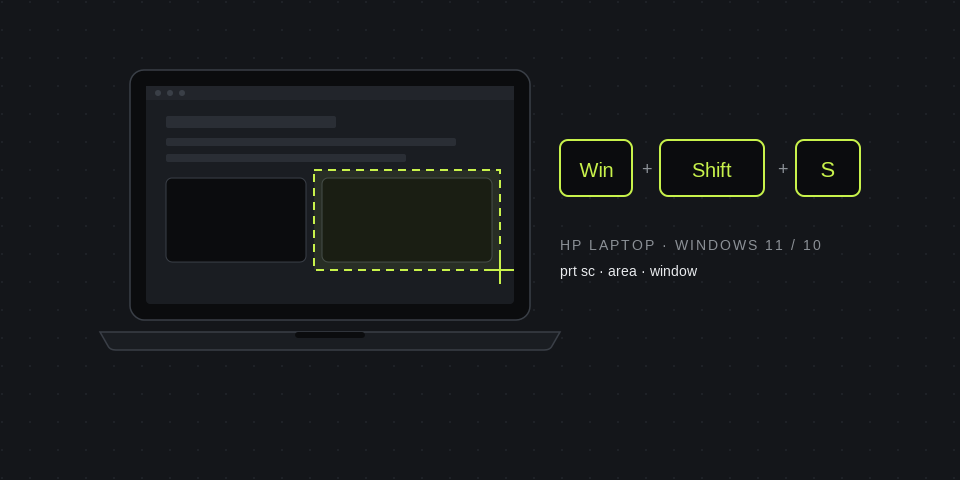
HP screenshot shortcuts at a glance
| What you want | Press | Windows |
|---|---|---|
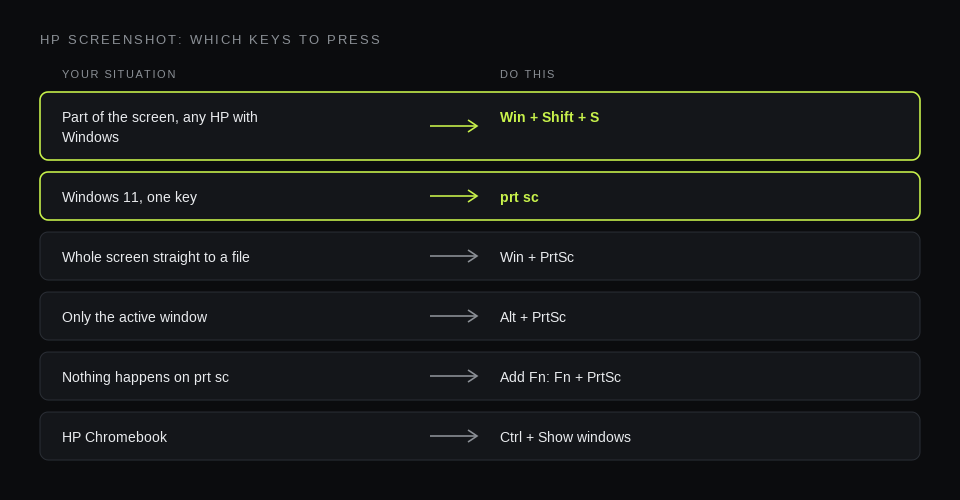
| Select an area, window or the full screen | Win + Shift + S | 11 and 10 |
| Same, with one key | PrtSc (on by default in Windows 11) | 11 |
| Whole screen, saved as a file right away | Win + PrtSc | 11 and 10 |
| Only the active window, to the clipboard | Alt + PrtSc | 11 and 10 |
| Whole screen, to the clipboard | PrtSc (Windows 10 default) | 10 |
| Record a video of the screen | Win + Shift + R | 11 |
Shortcuts are from Microsoft's Snipping Tool documentation, checked in November 2026. If PrtSc on your HP shares a key with another function and nothing happens, add Fn: Fn+PrtSc, Fn+Win+PrtSc and so on.
Find the Print Screen key on your HP keyboard
On HP laptops the label is often prt sc; other spellings are PrtScn, PrtSc or Print Screen. Look along the top row, usually near the right end among the F-keys, or next to the arrow keys on compact layouts.
Check whether the label is the main symbol on the key or a small second label. If it shares a key with something else, the top row on your HP may be set to media functions first (volume, brightness), and then PrtSc only fires together with Fn. If a combination with Fn works, simply keep using it.
On an HP desktop or an all-in-one with a full-size keyboard, Print Screen is a separate key to the right of F12, above Insert. No Fn is needed there.
Screenshot part of the screen: Win + Shift + S
This is the shortcut to learn first, because it works the same on every HP running Windows 10 or 11 and doesn't depend on where prt sc is.
- Press Win+Shift+S. The screen dims and a small toolbar appears at the top.
- Choose a mode: Rectangle, Window, Full screen or Freeform.
- Drag over the area, or click a window.
- The screenshot is on the clipboard. Paste it with Ctrl+V into an email, Teams, Word or a chat.
A preview also pops up in the bottom right corner. Click it to open the Snipping Tool editor, where you can draw on the image, crop it and save it. On Windows 11 the snip is saved automatically too, see the section on where files go below. Our Snipping Tool guide covers the editor, delayed snips and video snips in detail.
Screenshot the whole screen on an HP laptop
There are two ways, and the difference is where the image goes.
Win + PrtSc saves a PNG of the entire screen immediately. You get no editor, just a file in the Screenshots folder. This is the quickest way to keep a record of something without pasting it anywhere.
PrtSc on Windows 10 copies the full screen to the clipboard without saving a file. Open Paint, Word or a chat and press Ctrl+V. On Windows 11 the same key opens the snipping toolbar instead; pick Full screen mode there.
With a second monitor connected, the simplest way to capture just one screen is Win+Shift+S and a drag over that screen.
Screenshot one window: Alt + PrtSc
Click the window you want so it's active, then press Alt+PrtSc (or Fn+Alt+PrtSc if your prt sc shares a key). Only that window goes to the clipboard, without the taskbar and other apps behind it. Paste it with Ctrl+V. Nothing is saved as a file, so paste it before you copy anything else.
HP EliteBook, ProBook, Envy, Pavilion and Spectre
The keys above are the same on every HP Windows model, because they belong to Windows, not to HP. The questions people ask about specific lines usually come down to one thing: the prt sc key isn't where they expected.
- EliteBook and ProBook (business laptops): look for prt sc in the top row. If pressing F5 refreshes a browser page, your top row works as F-keys and PrtSc works on its own; if F5 changes brightness or volume instead, add Fn.
- Envy, Pavilion and Spectre (consumer laptops): the same test applies. If the top row controls volume and brightness, use Fn+PrtSc.
- Envy x360, Pavilion x360 and other convertibles: in laptop mode use the keyboard as usual. Folded into tablet mode, open Snipping Tool from the Start menu, tap New and select the area with your finger or pen.
- HP desktops and all-in-ones: Print Screen is its own key on the full keyboard, no Fn.
- HP Chromebook: that's ChromeOS, not Windows, and the keys are different. Use Ctrl + Show windows; full details in how to screenshot on a Chromebook.
If you don't know which line you have, the model name is printed on the sticker under the laptop or shown in Settings › System › About.
Where screenshots are saved on an HP laptop
| Method | Where it goes |
|---|---|
| Win + PrtSc | File in C:\Users\<your name>\Pictures\Screenshots |
| Win + Shift + S, PrtSc on Windows 11 | Clipboard, plus Pictures\Screenshots on Windows 11 |
| Win + Shift + S on Windows 10 | Clipboard only, until you click Save Snip in the editor |
| PrtSc on Windows 10, Alt + PrtSc | Clipboard only |
| Win + Shift + R recording | Videos\Screen Recordings, as MP4 |
To open the folder fast, press Win+E for File Explorer and click Pictures, then Screenshots. If OneDrive backs up your Pictures folder, the path may be inside OneDrive instead. To change where Snipping Tool saves, open it, click See more (the three dots) and then Settings.
HP screenshot not working: what to check
prt sc does nothing. Try it with Fn. If that doesn't help, use Win+Shift+S, which doesn't need the Print Screen key at all.
PrtSc opens something else. OneDrive, Dropbox, Lightshot, ShareX and Greenshot can all take over the Print Screen key. Turn off their screenshot hotkey and try again.
You want PrtSc to stop opening the snipping toolbar. On Windows 11, go to Settings › Accessibility › Keyboard and turn off Use the Print screen button to open screen snipping. On Windows 10 it's the opposite: the same option under Settings › Ease of Access › Keyboard turns it on.
Win + Shift + S stopped working. Close Snipping Tool in Task Manager and press the shortcut again. If it still fails, go to Settings › Apps › Installed apps › Snipping Tool › Advanced options and click Repair. On a work laptop, company policy may block Snipping Tool; ask your IT team.
More fixes for the Snipping Tool itself are in our Snipping Tool guide.
When you need to send the screenshot to someone
Windows takes the screenshot well. The extra work starts after: you paste it, draw a red box in Paint, save it, find the file and attach it, then explain in words which part matters.
DashShot is a free Windows app that shortens that. Press Ctrl+Shift+1, select an area, and an editor opens with one-letter tools: A arrow, R box, T text, N numbered step, B pixelation for an email address or an account number. Press Ctrl+Enter and a link is on the clipboard; the person opens it in a browser without installing anything. Ctrl+Shift+2 skips the editor and gives you a link to the full screen at once.
Screenshots are unlimited on the free plan. Get it from the Microsoft Store or as an .exe installer, and see what else it does on the screenshots page. For other devices and systems, start with our guide on how to take a screenshot on any computer.