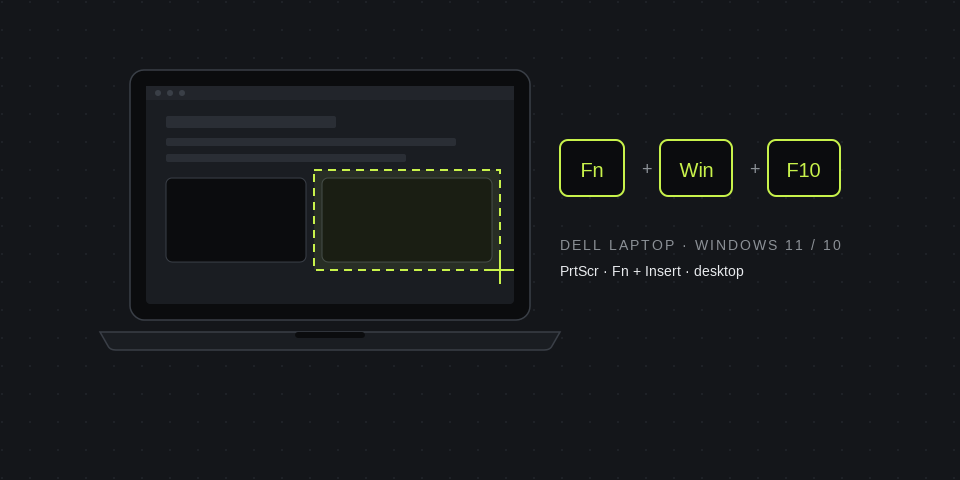
Find Print Screen on your Dell first
Dell labels the key PrtScr, PrtScn or PrtSc, depending on the keyboard. According to Dell's own support article (checked 18 November 2026), there are three common layouts:
| Keyboard | Where Print Screen is | Press |
|---|---|---|
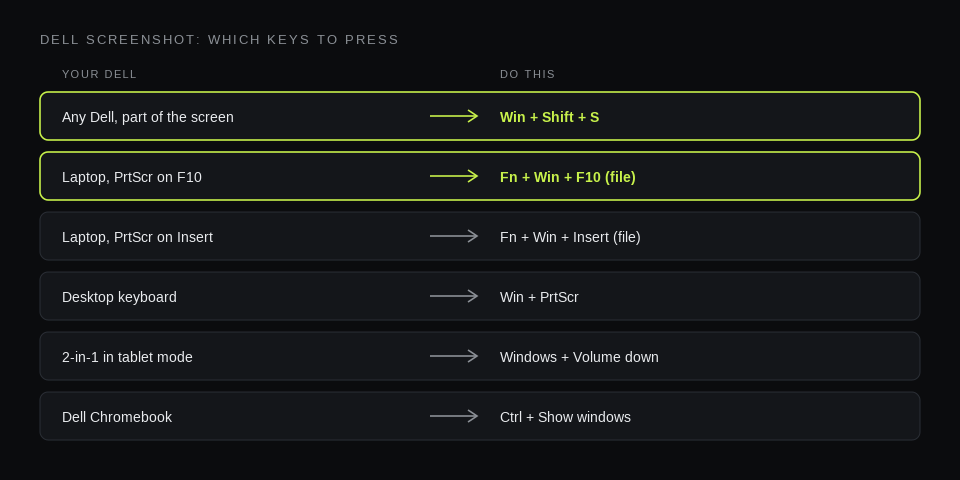
| Most Dell laptops | Second label on F10 in the function row | Fn + F10 |
| Some Dell laptops | Second label on Insert | Fn + Insert |
| Dell desktop keyboards | Own key, upper right corner | PrtScr |
| Desktop keyboards without the key (for example KM3322W) | Second label on Insert | Fn + Insert |
| Dell Windows tablets | No key | Windows button + Volume down |
Look at the top row of your keyboard. If F10 has a small "PrtScr" printed on it, you have the first layout. If you can't find the label anywhere, check Insert, or skip the key entirely and use Win + Shift + S.
Some newer Dell laptops have a capacitive or backlit function row instead of physical F-keys. Dell notes that on those you may need to switch the row to its function layer before PrtScr appears.
Screenshot part of the screen on any Dell: Win + Shift + S
This shortcut doesn't use Print Screen, so it works the same on an Inspiron, a Latitude, an XPS or a Vostro, and on Dell desktops with Windows 10 or 11.
- Press Win+Shift+S.
- Choose Rectangle, Window, Full screen or Freeform in the bar at the top.
- Select the area.
- Paste it with Ctrl+V wherever you need it.
Click the preview in the corner to crop or mark up the screenshot. On Windows 11 the snip is saved to Pictures › Screenshots automatically; on Windows 10 you need to click Save Snip. Our Snipping Tool guide explains the editor and timed snips.
Save the whole screen as a file
Press Win+PrtScr. On a laptop where PrtScr is on F10, that becomes Fn+Win+F10; where it's on Insert, Fn+Win+Insert. The screen dims briefly and the PNG is in Pictures › Screenshots. Dell's article is clear that this is the only key combination that saves a file automatically; the others only copy to the clipboard.
Copy the screen or one window to paste somewhere
PrtScr on its own (with Fn if needed) copies the entire desktop to the clipboard on Windows 10. On Windows 11 it opens the snipping bar instead, the same as Win + Shift + S. You can switch it back in Settings › Accessibility › Keyboard.
Alt + PrtScr copies only the active window. On a typical Dell laptop that means Fn+Alt+F10. Paste it with Ctrl+V into Paint, Word, Outlook or a chat.
Dell laptop: when Fn is needed and when it isn't
Whether you need Fn depends on what the top row does by default. A quick test: open a browser and press F5. If the page reloads, the row works as F-keys, and you only need Fn for keys whose PrtScr label is secondary. If F5 changes brightness or volume, the row is in media mode and every F-key combination needs Fn.
Many Dell laptops let you lock the row in one mode. If your Esc key shows a small padlock with "Fn", pressing Fn+Esc switches between media keys and F-keys. If there's no padlock, the user guide for your model on dell.com shows how the function row is set.
Dell desktop and all-in-one computers
On a full-size Dell keyboard (OptiPlex, Inspiron desktop, all-in-ones), PrtScr is a dedicated key in the upper right corner, Dell says. No Fn is needed: press PrtScr, Win + PrtScr or Alt + PrtScr directly.
Compact Dell keyboards such as the KM3322W drop the key, and Dell uses Fn+Insert instead. If you have a third-party keyboard plugged into a Dell PC, the Dell layouts don't apply; Win + Shift + S always works.
Dell 2-in-1 in tablet mode
When the keyboard is folded back or detached, press the Windows button and Volume down at the same time. The full screen is saved to Pictures › Screenshots. To capture only part of the screen with a finger or a pen, open Snipping Tool from Start and tap New.
Which method to use for which job
Knowing the keys is half of it. The other half is picking the one that gets the screenshot where it needs to go with the fewest steps.
- Proof of something on screen (an error, a payment confirmation, a booking): Win + PrtScr. The file is saved before you do anything else, even if the page closes or the laptop restarts.
- A piece of the screen for a chat or an email: Win + Shift + S, then Ctrl + V. Nothing is left in your folders that you'll have to clean up later.
- A dialog box for IT support: Alt + PrtScr (Fn + Alt + F10 on most Dell laptops). Only the dialog, no background.
- A drop-down menu: open Snipping Tool, press Alt+D to set a delay of 1 to 5 seconds, start a snip and open the menu before the countdown ends.
- A long web page: Windows can't scroll while capturing. In Chrome, a full page screenshot extension scrolls the page and stitches it into one image.
- Something that only happens when you click: a video says more. On Windows 11, Win+Shift+R records a part of the screen; other options are on our Windows screen recorder page.
Dell Chromebook
Dell Chromebooks run ChromeOS, so none of the Windows keys above apply. Press Ctrl+Show windows for the full screen or Ctrl+Shift+Show windows for an area. The full guide is in how to screenshot on a Chromebook.
Where screenshots are saved on a Dell
| Method | Where it goes |
|---|---|
| Win + PrtScr, Windows + Volume down | C:\Users\<your name>\Pictures\Screenshots |
| Win + Shift + S on Windows 11 | Clipboard and Pictures\Screenshots |
| Win + Shift + S on Windows 10 | Clipboard until you click Save Snip |
| PrtScr (Windows 10), Alt + PrtScr | Clipboard only |
Open File Explorer with Win+E and go to Pictures › Screenshots. Dell laptops often come with OneDrive set up, and if it backs up Pictures, the folder is inside OneDrive.
Dell screenshot not working
Nothing happens on PrtScr. Add Fn, or try Fn + Insert in case your model uses that layout.
Fn + F10 changes something else. Then PrtScr isn't on F10 on your model. Look at the printed labels again or use Win + Shift + S.
The key opens another program. OneDrive, Dropbox and screenshot apps such as Lightshot or ShareX can take over Print Screen. Disable their hotkey.
Win + Shift + S stopped working. Repair Snipping Tool in Settings › Apps › Installed apps › Snipping Tool › Advanced options. On a company Latitude, IT policy may block it.
Shortcuts that are the same on every Windows computer, regardless of brand, are in our guide on how to screenshot on PC. HP owners have their own guide: how to screenshot on an HP laptop.
Send a Dell screenshot as a link
If the screenshot is for a colleague, a client or support, the slow part is everything after the capture: mark the problem, save, attach, explain.
DashShot for Windows does it in one go. Press Ctrl+Shift+1 (no Fn, no PrtScr), select the area and mark it up with single keys: A arrow, R box, T text, N step number, B pixelation for personal data. Ctrl+Enter copies a link that opens in any browser. Screenshots are unlimited on the free plan.
Get it from the Microsoft Store or the .exe installer, or read more on the screenshots page.