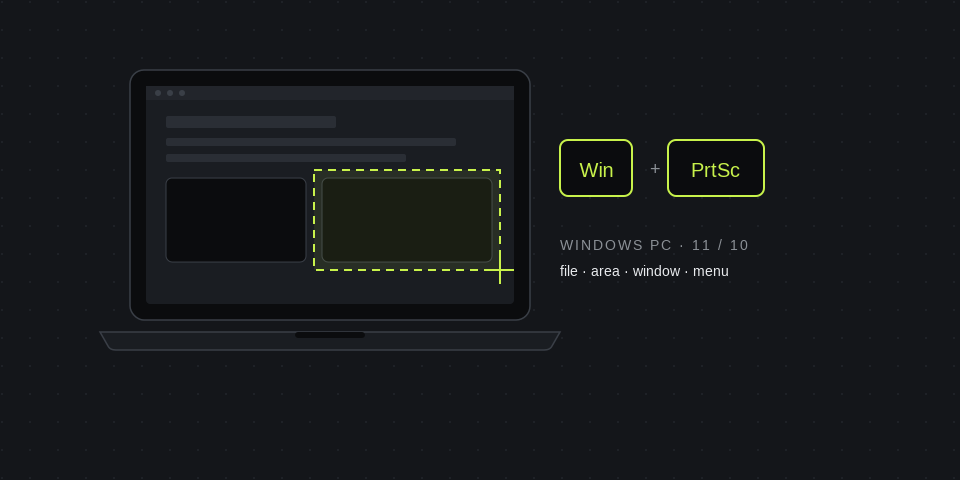
Which shortcut to press
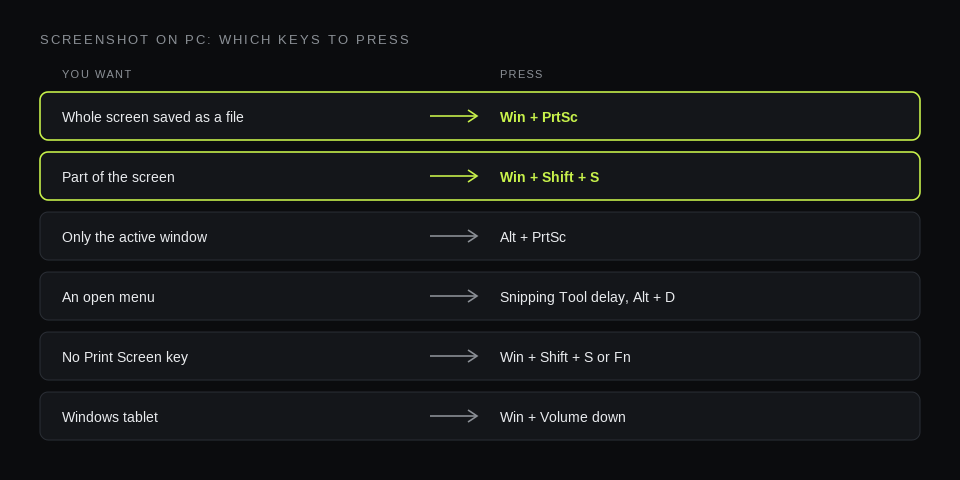
Windows has six built-in ways to take a screenshot on a computer. They differ in two things: what gets captured and whether you end up with a file or only a copy on the clipboard.
| You want | Press | Result |
|---|---|---|
| Whole screen as a file | Win + PrtSc | PNG in Pictures › Screenshots |
| Part of the screen | Win + Shift + S | Clipboard (+ file on Windows 11) |
| Whole screen, to paste somewhere | PrtSc | Clipboard, or the snipping bar (see below) |
| Only the active window | Alt + PrtSc | Clipboard |
| A screenshot after a few seconds | Alt + D in Snipping Tool | Delay of 1 to 5 seconds |
| Screen on a Windows tablet | Win + Volume down | PNG in Pictures › Screenshots |
Shortcuts are from Microsoft's Snipping Tool page and Dell's Windows support article, both checked on 18 November 2026. They work the same on desktops and laptops of any brand, because they belong to Windows.
Win + PrtSc: the full screen, saved straight away
Hold the Windows key and press PrtSc. The screen dims for a moment, and that's the only sign anything happened. The file is already in C:\Users\<your name>\Pictures\Screenshots, named Screenshot with a number or a date.
Use it when you need to keep a record: an error message, an order confirmation, a page that might change. You don't have to paste or save anything, so it's also the safest method if you're about to restart the computer.
The downside is that you get everything, including the taskbar and whatever else is open. If you only need a fragment, the next shortcut is better.
Win + Shift + S: select exactly what you need
- Press Win+Shift+S. The screen dims and a small bar appears at the top.
- Pick a mode: Rectangle, Window, Full screen or Freeform. Windows 11 also has Video snip there.
- Drag over the area or click the window.
- Paste with Ctrl+V into a chat, an email or a document.
A preview appears in the corner of the screen. Click it to open the editor, where you can crop, draw and save. On Windows 11 the snip is also saved automatically to the Screenshots folder. On Windows 10 it lives only on the clipboard until you click Save Snip in the editor.
This is the method people mean when they search for "screen capture Windows". Every editor option, the pen, OCR on Windows 11 and video snips are covered in our Snipping Tool guide.
What PrtSc on its own does
This is where Windows 10 and 11 behave differently, and it's the source of most "my screenshot didn't save" questions.
On Windows 10, PrtSc copies the whole desktop to the clipboard. No file, no sound, nothing on screen. Open Paint, Word or a chat window and press Ctrl+V to see it.
On Windows 11, PrtSc opens the same snipping bar as Win + Shift + S by default. If you'd rather have the old behaviour back, go to Settings › Accessibility › Keyboard and turn off "Use the Print screen button to open screen snipping". On Windows 10 the same switch lives under Settings › Ease of Access › Keyboard and works the other way round.
Alt + PrtSc: one window without the clutter
Click the window you want so it's in front, then press Alt+PrtSc. Windows copies just that window, without the taskbar, desktop icons or other apps behind it. It goes to the clipboard only, so paste it before you copy anything else.
This is the quickest way to screenshot a dialog box or a single program for a support ticket.
Screenshot an open menu or a tooltip
Menus close the moment you press a shortcut, which makes them hard to capture. Two ways around it:
- Delay. Open Snipping Tool from the Start menu, choose a delay (or press Alt+D for 1 to 5 seconds), start a new snip, then open the menu before the countdown ends.
- Ctrl + PrtSc on Windows 10. With Snipping Tool open, open the menu and press Ctrl+PrtSc. The screen freezes with the menu still visible, and you select the area.
How to screenshot on PC with keyboard but no Print Screen key
Compact and laptop keyboards often hide PrtSc or leave it out. Try these in order:
- Win + Shift + S. It doesn't need PrtSc at all, so on most PCs the problem ends here.
- Fn + the key that has PrtSc as a second label. On many laptops that's in the function row. Dell, for example, uses Fn+F10 on some models and Fn+Insert on others.
- The on-screen keyboard. Press Win+Ctrl+O; it has a PrtScn button you can click.
- Snipping Tool from Start. Type "snipping" in the Start menu and click New. No keyboard needed.
Screenshots on laptops, tablets and specific brands
The Windows shortcuts above are the same on every PC. What changes from one manufacturer to another is where PrtSc sits and whether it needs Fn. If your top row controls volume and brightness by default, add Fn to every combination with PrtSc.
On Windows tablets and 2-in-1s folded into tablet mode, press the Windows button together with Volume down. The screenshot is saved to Pictures › Screenshots.
Brand-specific guides with key locations and model names:
- How to screenshot on an HP laptop: EliteBook, Envy, Pavilion, x360 convertibles.
- How to screenshot on a Dell: Fn + F10, Fn + Insert and Dell desktop keyboards.
- How to screenshot on a Chromebook, if your laptop runs ChromeOS rather than Windows.
- How to screenshot on a Mac, for anyone switching between the two.
Two monitors and long pages
With two or more monitors, Win + PrtSc and PrtSc capture all of them as one wide image. To capture a single monitor, press Win + Shift + S, pick Full screen mode and click the monitor you want, or drag a rectangle over it.
Windows has no built-in scrolling screenshot. For a long web page in Chrome, a browser extension does it: our full page screenshot extension scrolls the page and stitches it into one image.
Where screenshots are saved on PC
| Method | Where it goes |
|---|---|
| Win + PrtSc, Win + Volume down | Pictures › Screenshots |
| Win + Shift + S, Snipping Tool | Clipboard and Pictures › Screenshots on Windows 11; clipboard only on Windows 10 |
| PrtSc (Windows 10), Alt + PrtSc | Clipboard only |
| Win + Shift + R video snip | Videos › Screen Recordings |
Press Win+E to open File Explorer, then Pictures › Screenshots. If OneDrive backs up your Pictures folder, look inside OneDrive › Pictures instead. You can change the Snipping Tool folder under See more › Settings.
Lost a clipboard screenshot? Press Win+V. If clipboard history is turned on, the last several copies are there.
Screenshot not working on Windows
PrtSc does nothing. Add Fn. If there is still no reaction, another app may have taken the key: OneDrive, Dropbox, Lightshot, ShareX and Greenshot all can. Turn off their Print Screen hotkey.
Win + Shift + S doesn't open. End Snipping Tool in Task Manager and try again. Still nothing: Settings › Apps › Installed apps › Snipping Tool › Advanced options › Repair. On a work PC, an IT policy may block it.
The screenshot is black. Streaming services and some banking apps block screen capture on purpose. That's the app, not your PC.
Recording the screen instead
When a screenshot can't show the problem, record it. On Windows 11, Win+Shift+R starts a video snip. The options, including Game Bar and recording with sound, are compared on our Windows screen recorder page.
When the screenshot has to go to someone else
Windows captures the image fine. What takes time is the rest: open Paint, draw a box, save, find the file, attach it, write a paragraph explaining what to look at.
DashShot is a free Windows app built for that part. Ctrl+Shift+1 selects an area and opens an editor with single-key tools: A arrow, R box, T text, N numbered step, B to pixelate a password or a card number. Ctrl+Enter puts a link on the clipboard, and the other person opens it in a browser. Ctrl+Shift+2 gives you a link to the full screen without the editor.
Screenshots are unlimited on the free plan. Install it from the Microsoft Store or with the .exe installer, and see the features on the screenshots page. For other systems, our guide to taking a screenshot on any device has the short version for each one.